
The Ticket Dispatch (Suggest Technician) action intelligently recommends which technician should handle a ticket. It considers factors like availability, skills, current workloads, and customer relationships to make the best suggestion.Documentation Index
Fetch the complete documentation index at: https://docs.neoagent.io/llms.txt
Use this file to discover all available pages before exploring further.
This action can suggest a technician, but you’ll need to add the Assign Ticket to Technician action afterward to actually make the assignment in your PSA.
Quick start
Choose your trigger
Add to workflows triggered by “Ticket Created” or when tickets move between boards/statuses.
Select your technician pool
Choose how Neo gets the pool of technicians: manually select them (Dashboard Pool), pull from the ticket’s company team, or use the ticket’s board team (ConnectWise only).
How it works
This action uses intelligent analysis to recommend the best technician:- Analyzes ticket requirements - Reviews ticket content, priority, and complexity
- Checks technician availability - Considers calendars, working hours, and current status
- Evaluates expertise - Matches technicians to similar past tickets and skill areas
- Balances workload - Considers current ticket assignments and capacity
- Maintains relationships - Prefers technicians who have worked with the customer before
Setup
Technician pool
The first thing to configure is where Neo should get the pool of technicians to consider for dispatch. You can choose from three sources using the Technician Pool Source dropdown: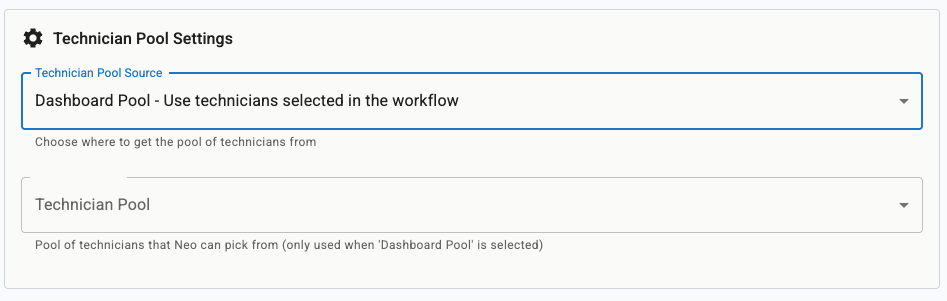
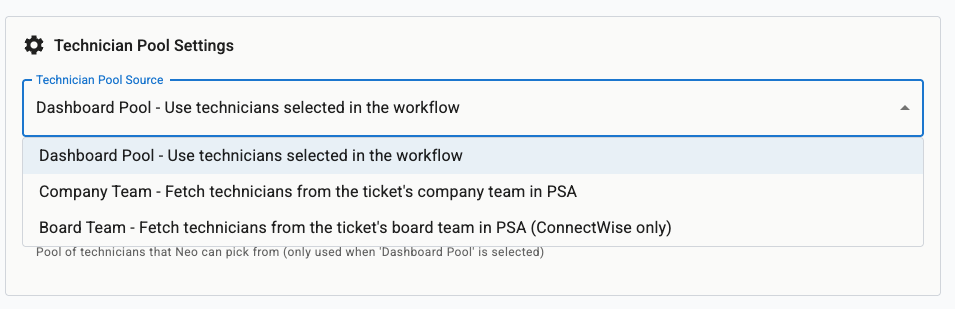
- Dashboard Pool
- Company Team
- Board Team (ConnectWise only)
Dashboard Pool lets you manually select a fixed set of technicians directly in the workflow configuration. This is the default option.Use this when you have a specific team or group of technicians you always want Neo to choose from, regardless of the ticket’s company or board.After selecting this option, use the Technician Pool dropdown below it to pick which technicians should be included.
Other settings
Smart features: Enable calendar checking, workload balancing, and expertise matching. Custom instructions: Provide specific guidance for your team’s needs and preferences. Scheduling options: Enable automatic calendar booking to reserve time for assigned work. Round Robin mode (optional): Use fair rotation instead of AI optimization for equal distribution.Writing effective custom instructions
Custom instructions help Neo make better dispatch decisions, but they need to be clear and specific. Here’s how to write instructions that work:Examples: Good vs. Bad
| ❌ Bad | 🤔 Why It’s Problematic | ✅ Better Approach |
|---|---|---|
| ”Jordan is off 02/10/25-11/10/25” | Ambiguous date format (US vs. UK) and missing last name make it hard for Neo to identify the right person | ”Jordan Kim is on PTO from 2nd October 2025 to 11th October 2025 — exclude from assignment suggestions during that period" |
| "Send security issues to Priya” | Too vague—which clients? What severity level? No context for when this applies | ”Critical network outages for Apex Fabrication must go to Priya Shah or Mateo Alvarez" |
| "Don’t assign waiting tickets” | Unclear what “waiting” means—could be a status, board, or custom field | ”When calculating workload, ignore tickets in the ‘Waiting on Customer’ status so team members are not penalized for stalled work” |
What you get
After running, you’ll have technician recommendations with detailed reasoning, availability analysis, and workload considerations ready to apply with assignment actions.Common use cases
Intelligent ticket routing
Intelligent ticket routing
Automatically route new tickets to the best available technician based on skills, availability, and workload balance.
Customer relationship continuity
Customer relationship continuity
Maintain customer relationships by preferring technicians who have previously worked with specific clients.
Workload balancing
Workload balancing
Distribute tickets fairly across your team while still considering expertise and availability.
Round Robin dispatch
Round Robin dispatch
Use simple, fairness-first rotation to spread work evenly across your team, regardless of workload optimization.
Best practices
Start simple
Start simple
Begin with basic availability and workload checking enabled. Add more sophisticated rules later once you see how it works.
Keep calendar checking enabled
Keep calendar checking enabled
Calendar integration ensures Neo considers technician availability and working hours when making suggestions.
Use custom instructions
Use custom instructions
Add specific guidance like “Prefer Sarah for network issues” or “Critical tickets go to senior technicians first.”
Enable smart scheduling
Enable smart scheduling
Turn on automatic calendar booking to not only assign technicians but also reserve time in their calendars.
Balance expertise and fairness
Balance expertise and fairness
Use AI optimization for skill matching or Round Robin mode for equal distribution, depending on your priorities.
Monitor and adjust
Monitor and adjust
Check Event History to see dispatch reasoning and adjust settings based on actual assignment effectiveness.
Prevent re-processing assigned tickets
Prevent re-processing assigned tickets
To prevent Neo from re-processing tickets that already have an owner, add a Filter Ticket condition to your Dispatch workflow:This ensures Neo will never re-process tickets that already have an assigned technician, even if the workflow triggers late.
- ConnectWise Manage
- Autotask
Add a filter condition:
owner.id is nullExample workflows
Smart New Ticket Dispatch
Smart New Ticket Dispatch
- Trigger: New ticket created
- Ticket Dispatch - Suggest best technician based on skills and availability
- Assign Ticket to Technician - Apply suggestion and update ticket status
- Result: Every new ticket gets optimal technician assignment automatically
Priority-Based Assignment
Priority-Based Assignment
- Trigger: Ticket priority changed to “High” or “Critical”
- Ticket Dispatch - Find senior technician with availability
- Assign Ticket to Technician - Assign immediately with calendar booking
- Notify Ticket’s Owner - Alert technician about urgent assignment
- Result: High-priority tickets get immediate attention from qualified staff
Round Robin Fair Distribution
Round Robin Fair Distribution
- Trigger: New ticket created in specific queue
- Ticket Dispatch - Round Robin mode for fair rotation
- Assign Ticket to Technician - Apply rotation assignment
- Result: Work distributed equally across team members
Triage + Board Team Dispatch (ConnectWise)
Triage + Board Team Dispatch (ConnectWise)
- Trigger: New ticket created
- Ticket Triage - Analyze the ticket and assign the correct team (e.g., “Server issues go to the Server Team”)
- Ticket Dispatch (Board Team pool) - Neo reads the team from the ticket, pulls its technicians, and suggests the best one
- Assign Ticket to Technician - Apply the assignment
- Result: Triage picks the right team, Dispatch picks the right technician on that team — fully automated two-step routing
Frequently asked questions
How does Neo calculate technician workload?
How does Neo calculate technician workload?
Neo calculates workload based on settings you configure under “Consider technician Workload” in dispatch settings:
- Time period: Choose how many days back Neo should look (e.g., last 7 days)
- Activity criteria: Select what counts as activity:
- Ticket last update (any change to the ticket)
- Last ticket time entry (logged work time)
- Last ticket note (comments or updates)
How do I set up technician work schedules for dispatch?
How do I set up technician work schedules for dispatch?
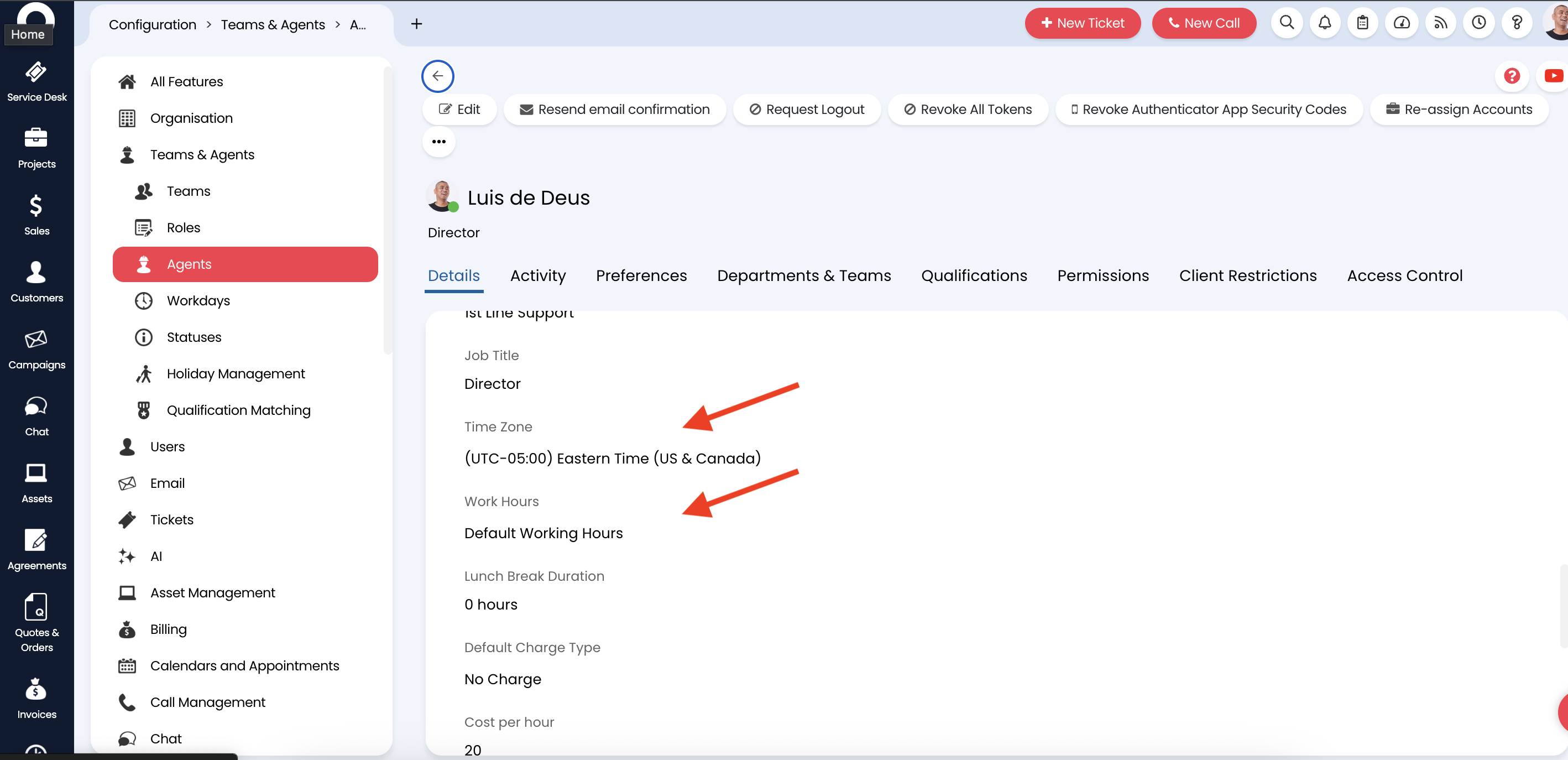
Neo automatically reads technician working hours from your PSA system. The setup process depends on which PSA you’re using:
- ConnectWise Manage
- Autotask
- Halo PSA
Setup in ConnectWise Manage:
- Create different calendar templates for each work schedule (e.g., “7AM-4PM Schedule”, “8:30AM-5PM Schedule”, “9AM-6PM Schedule”)
- Assign the appropriate calendar to each technician in their member profile
- Neo will automatically use these calendars when checking availability
- Create a “7AM-4PM” calendar and assign it to your 2 help desk technicians
- Create an “8:30AM-5PM” calendar for your 2 technicians with that schedule
- Create a “9AM-6PM” calendar for your 1 technician with that schedule
How do I assign multiple technicians?
How do I assign multiple technicians?
You can configure Neo to suggest multiple technicians for a single ticket using the “Number of technicians to suggest” setting.To set up multiple technician suggestions: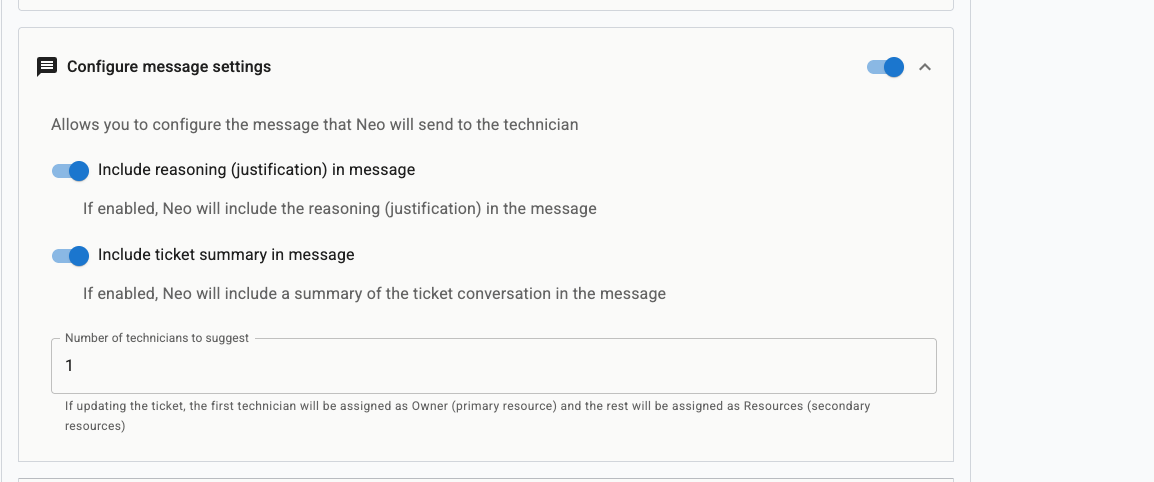
- Open the Configure Message Settings section in your Ticket Dispatch action
- Find the Number of technicians to suggest field
- Increase this number to however many technicians you want suggested (e.g., 10)
- ConnectWise Manage
- Autotask
- First technician: Assigned as the ticket Owner (primary resource)
- Additional technicians: Added as Resources (secondary resources)