
Neo Agent integrates with Hudu to automatically synchronize your documentation and give agents direct API access to your Hudu instance. Once connected, Neo indexes your articles, assets, and procedures for search, and agents can read and manage Hudu resources based on the permissions you configure.Documentation Index
Fetch the complete documentation index at: https://docs.neoagent.io/llms.txt
Use this file to discover all available pages before exploring further.
Hudu provides robust API access, so Neo can keep your documentation up to date without manual exports — and agents can interact with Hudu directly during ticket resolution.
Create an API key in Hudu
- Log in to your Hudu instance.
- Go to Admin → API.
- Click Add New API Key.
- Give the key a descriptive name (e.g., “Neo Agent”).
- Copy the API key and store it securely.
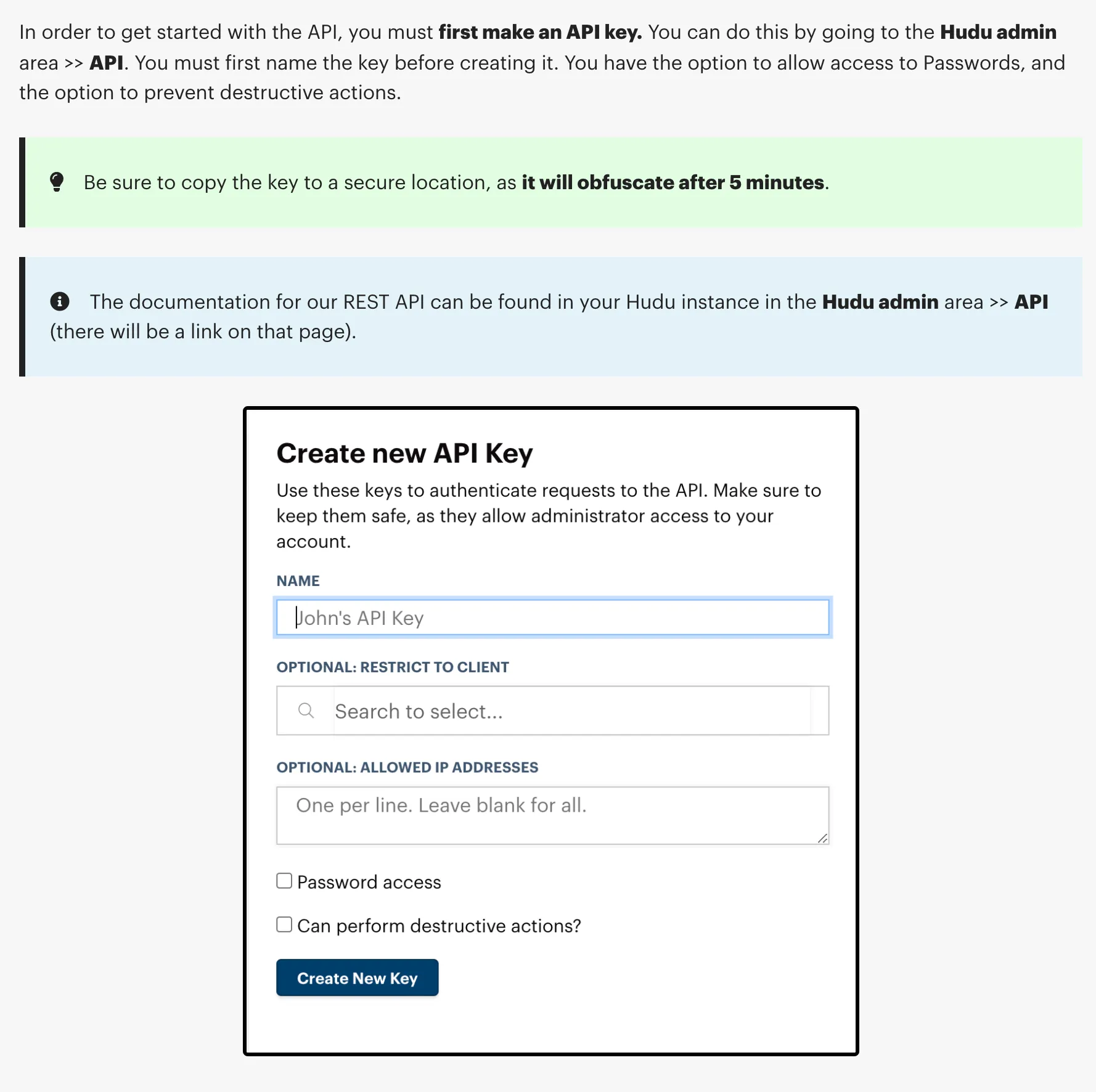
For agents with write permissions, the API key must have full access. For read-only documentation sync, a read-only key is sufficient.
Add the Hudu integration in Neo
- In the Neo Dashboard, open Integrations.
- Select the Documentation tab and add Hudu.
- Enter your Hudu URL and API key.
https://your-company.huducloud.com(cloud-hosted)https://hudu.your-domain.com(self-hosted)
Initial sync and ongoing updates
After saving the integration:
- Neo connects to Hudu using your API key and URL
- Performs an initial sync of all accessible articles, assets, and procedures
- Parses content and metadata, then indexes it in Neo’s search engine
- Re-syncs periodically to pick up additions, edits, and removals
No manual uploads required. Your Hudu docs stay current automatically.
What gets synced
Neo syncs the following from Hudu for documentation search:| Content Type | Status |
|---|---|
| Articles (Knowledge Base) | Synced |
| Assets (structured data) | Synced |
| Procedures (step-by-step process docs) | Synced |
| Companies | Synced (for organization) |
Agent API access
When you enable the Hudu API tool on an agent, it can interact with your Hudu instance directly during ticket resolution — looking up documentation, creating articles, managing assets, and more.Permission groups
Agent access to Hudu is controlled through 8 permission groups, each configurable as Disabled, Read Only, or Read/Write:| Permission Group | What it controls |
|---|---|
| Companies | Companies, relations, activity logs, matchers, integration cards |
| Articles | Knowledge base articles, procedures, uploads, public photos |
| Assets | Asset records — structured data entries created from asset layout schemas |
| Asset Layouts | Asset layout definitions — the schemas that define asset structure |
| Passwords | Asset passwords and password folders |
| Folders | Documentation folders for organizing articles |
| Infrastructure | Networks, VLANs, VLAN zones, IP addresses (IPAM), rack storages |
| Websites | Monitored website entries — uptime and SSL tracking |
Access profiles
For quick setup, choose a preset access profile:Read Only
All 8 groups set to read-only. The agent can look up any Hudu data but cannot make changes.
Documentation Manager
Read/write for Articles, Assets, Folders, and Websites. Read-only for everything else. Ideal for agents that create and update documentation autonomously.
Full Access
All groups read/write with delete enabled. Passwords still require technician approval for write operations. Company deletion is always blocked.
Safety controls
- Passwords always require approval — write operations on passwords trigger technician-in-the-loop approval regardless of permission settings.
- Company deletion is blocked — agents cannot delete companies, even with full access.
- Delete must be explicitly enabled — each permission group has a separate “Allow Delete” toggle.
Security
- Documentation sync only reads articles, assets, and procedures — no write access required for sync
- Passwords are never synced or stored by Neo
- Agent write access is opt-in per permission group
- All data is encrypted in transit and at rest
- API keys are stored in Azure Key Vault, never in plaintext